










Swift Map Demo
iOS User Guide
The Swift Map Demo app makes it easy to demonstrate and evaluate GNSS location accuracy across multiple sources: iPhone or iPad’s built-in GPS, MFi Bluetooth GNSS receivers, or any external NMEA receiver connected over IP.
Key features include:
-
Real-time tracking: View position live on a map.
-
Logging & replay: Record sessions and overlay previous logs for comparison.
-
Camera overlay: Add a live camera view to the map, making it simple to screen-record tests while capturing the real environment—ideal for drive testing with a dash-mounted device.
Getting Started
Installation

Requirements – iOS 17+ on iPhone XS or later, or iPad (6th gen+ / mini 5+ / Air 3+ / Pro 2nd gen+).
Permissions – On first launch, the app will request:
- Location access → Select “Allow While Using App”, and if prompted again, “Allow Always” for continuous tracking.
- Camera access → Select “Allow” if you plan to use the camera overlay.
Settings
Location Sources
The app supports three ways of receiving location:
Core Location (Internal): Uses the iPhone/iPad’s built-in GNSS. Useful as a baseline “uncorrected” stream. Appears in the app as CoreLocation (Internal).
Core Location (External MFi): Bluetooth GNSS receivers certified Made for iPhone, or vehicle’s GNSS receiver connected via CarPlay. Inject positions into Core Location and share them with all apps. Appears in the app as CoreLocation (External).
NMEA over IP: Connects to an external GNSS receiver that streams NMEA sentences over TCP/IP. The app connects as a TCP client and decodes:
GGA (required) → position and fix type.
VTG (optional) → course and speed.
GST or PQTMEPE (optional) → accuracy estimate.
Source Menu Options
When you tap Source, you can configure:
Location Source: Core Location or NMEA over WiFi.
Display Name: Friendly name for your source or leave default.
IP:Port: For NMEA over WiFi connections.
Track Color: Assign a line color for the active track.
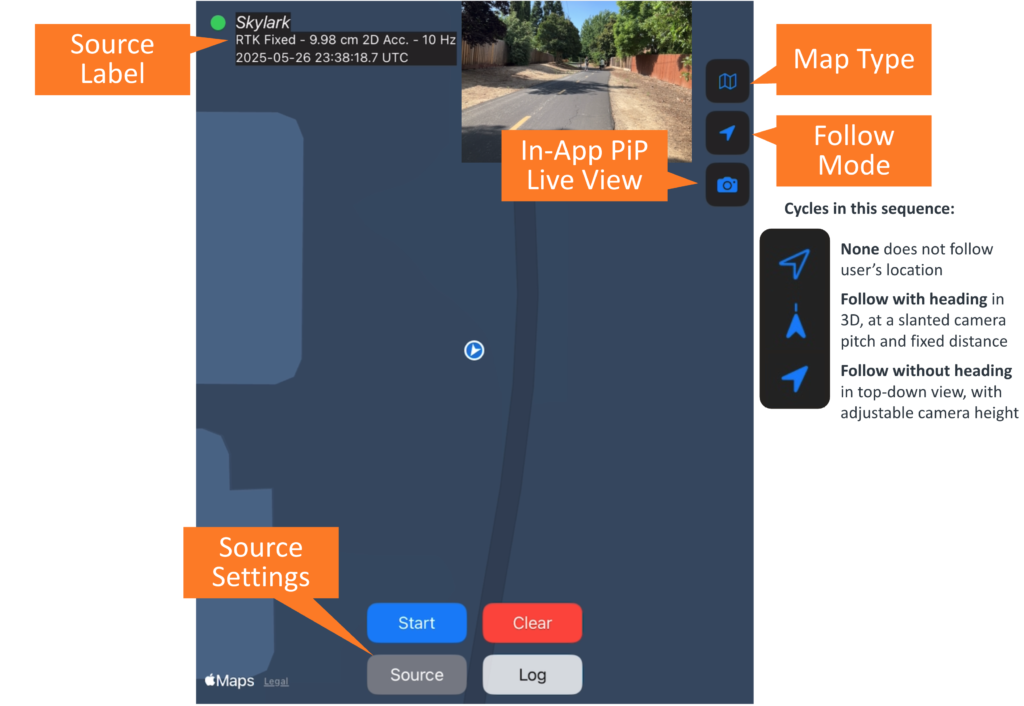
Source Label Mode:
Off = hide label.
Basic = show name only.
Detailed = full info, see below.
Detailed Label Info
Fix type: No Fix, SPP, DGPS, DR, RTK Fixed, RTK Float, etc. (only shows when using NMEA over IP).
Timestamp: UTC time of fix (from GGA in NMEA over WiFi mode, or from CoreLocation).
Update rate: Reported as Hz.
Horizontal accuracy: Estimated from CoreLocation or NMEA’s GST or EPE sentence (in m/cm).
ℹ️
When using an external GNSS receiver, CoreLocation often reports a default 2D accuracy of 5 m instead of a true estimate.

Map & Display
Map Types (Map button): Standard, Satellite, Hybrid, or Blank.
Follow Modes (Arrow button):
Off = free pan/zoom.
Follow = top-down view, good for pedestrians.
Follow with Heading = 3D tilted view, good for vehicle demos.
Camera Overlay (Camera button):
Adds live camera feed from the device’s back camera on top of the map.
Can be resized and repositioned with pinch/drag gestures.
Useful as source of truth when screen recording field tests.
Executing a Demo
💡
Use iPad Split Screen to compare multiple receivers side-by-side (learn how).
Configure Source
Tap Source → choose Core Location or NMEA over WiFi.
Enter display name, IP:Port (if NMEA), Track Color, and Label Mode.
Set Map & Display
Choose map type (Standard recommended for most tests).
Pick follow mode (3D follow for vehicles, top-down for walking).
(Optional) Enable camera overlay for video reference.
Start Recording
Tap Start (blue button) to begin tracking.
The app will begin logging breadcrumbs and drawing your track line.
(Optional) Start an iOS screen recording (learn how).
Run Demo
Drive, bike, or walk through your test area.
Breadcrumbs and polylines update live.
Pause or Stop
Tap Pause to pause logging.
Tracking auto-pauses after 2 hours.
⚠️
Tapping the Clear button will remove all tracks from the screen and memory and cannot be undone.
Logging
Exporting Logs
Tap Log → Export → Save to Files.
CSV file includes:
GGA timestamp, Decoded timestamp, Latitude [deg], Longitude [deg]Filename is timestamped automatically.
💡
Logs’ default filenames use the Source Display Name as prefix, and timestamp as suffix (e.g., Skylark_20250905_0941) to easily identify them.
Importing Logs
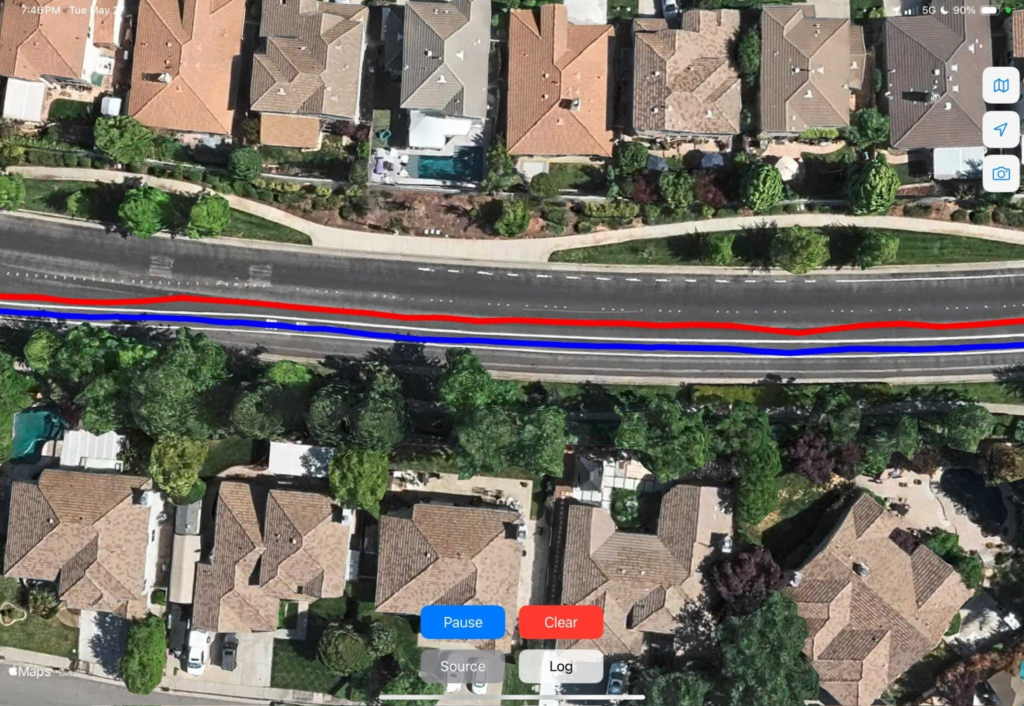
Tap Log → Import → Select track color → Choose CSV.
Multiple logs can be overlaid in different colors.
Troubleshooting
No Core Location data → Check iOS location permissions.
MFi receiver not showing as External → Confirm it’s certified and paired.
NMEA connection fails → Verify IP:Port and that the receiver is streaming over TCP, use Swift Console to test connection first.
CSV import not working → Ensure file format matches export spec.
Privacy & Data Handling
Location data stays on your device unless you export it.
CSV files are only saved when you explicitly export.
The app does not transmit your location to third parties.